Recordings
The Recordings page is the main starting point for reviewing footage in Kerberos Hub. Use it to find an incident by date, device, location, or analysis result, play the relevant recordings, and preserve evidence in a case.
Introduction
Open the recording navigation in the main sidebar to reach /media. The page
combines a filter bar, a time overview, and a grid of recordings. You can play
footage directly in the grid, inspect a recording in a right-hand side panel,
or open its dedicated detail page at /media/<id>.
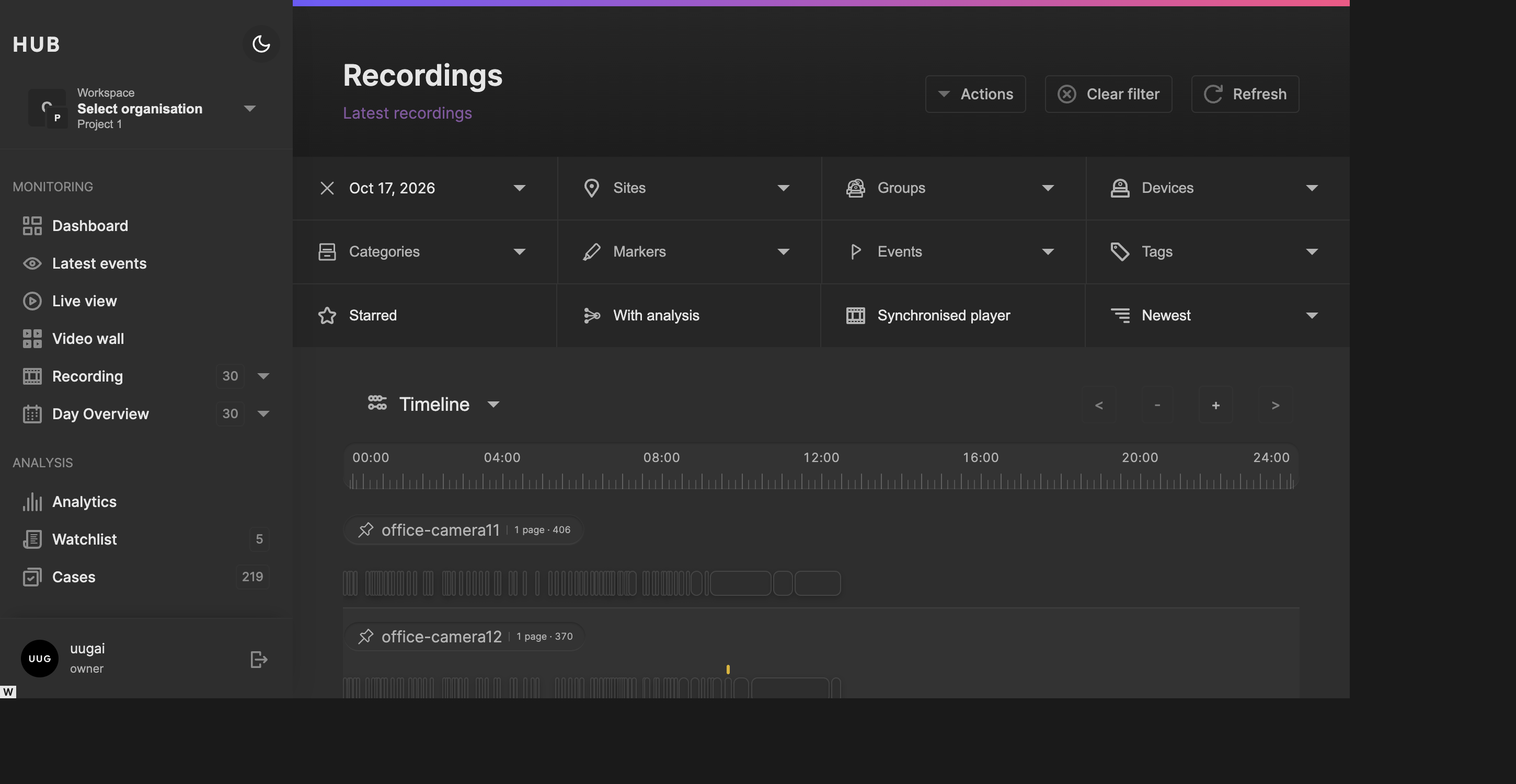
Start with the date and location, then use the timeline to narrow the incident window.
Feature availability
The filters and actions shown depend on your deployment configuration and permissions. A recording can be visible even when downloading, sharing, or creating a case is not available to your role.
How recordings become available
An Agent sends recordings, or recording metadata, through the configured media pipeline. Hub stores the information needed to find each recording and resolves the video from its storage provider when you play it.
Thumbnails, sprite previews, detections, counting results, and other analysis are produced separately. A recording may therefore be visible before all of its previews or analysis are ready. Not every deployment runs every analysis stage.
Some deployments upload metadata only initially and keep the video at the source Vault. Those recordings can appear in searches without being immediately playable. See Requesting recordings from the source.
Finding recordings
Date, location, and device filters
The filter bar narrows the complete result set, not just the cards currently loaded in the grid.
| Control | Use it to |
|---|---|
| Date | Choose the day to investigate. Available dates are based on the recording dates indexed for your current scope. |
| Sites | Limit the search to one or more locations. |
| Groups | Focus on a configured group of devices. |
| Devices | Select the cameras involved in an incident. Search within the picker when many devices are available. |
| Region | Narrow the search using a region on the selected devices. Select a device first to expose this control when it is enabled. |
| Newest / Oldest | Change the order in which recordings are shown. |
Multiple selections in a picker remain active together. Use the clear control on an active filter to remove that selection, or Clear filter in the page header to reset the search. Refresh reloads the results using the current filters.
Analysis filters
Use analysis filters after choosing the date and devices:
- Categories selects a family of markers.
- Markers selects named observations, including object classifications exposed through the marker catalogue.
- Events selects the events associated with markers.
- Tags selects marker tags.
- Starred shows only recordings marked with a star. Toggle it again to return to all recordings matching the other filters.
- With analysis hides recordings without notable analysis. This includes recordings with markers, descriptions, detections, classification or counting results, or vision-language analysis; it does not mean only recordings that triggered an alert.
Clearing a category also clears the marker selections that depend on it. Combining several filters can produce an empty result even when footage exists for the day. Clear the analysis filters first when checking whether a camera recorded anything.
See Markers for marker categories, events, tags, and occurrence details.
Timeline and chart
The overview above the grid can show a Timeline or a Chart. Use the overview selector to switch between the two.
The timeline arranges recordings by device against the time of day. Use the zoom controls to inspect a shorter interval and the navigation controls to move through time. Device badges can pin devices into the filter, helping you move from a broad overview to the cameras you want to review.
Drag a time selection to restrict the search to the incident window. The chart provides an alternative activity overview and also supports time-window selection. The recording grid updates to match the selected interval.
The date, time window, and device selections are reflected in the URL. For example:
/media?date=2026-10-16&from=36000&to=39600&devices=front-doorHere from and to are offsets in seconds from the start of the selected day:
10:00 to 11:00. Replace front-door with a device key available in your
project. Copying the URL lets another authorised user reopen that search; it
does not grant access to the recordings.
Tip
To investigate an incident, select the day and site first, pin the relevant devices, and narrow the timeline to a few minutes around the event. Add marker filters only when you know which observation you are looking for.
On smaller screens, use Filters to expand the additional filter controls and the Timeline / Chart control to reveal the overview. Page actions are also available through Actions.
Browsing and playing footage
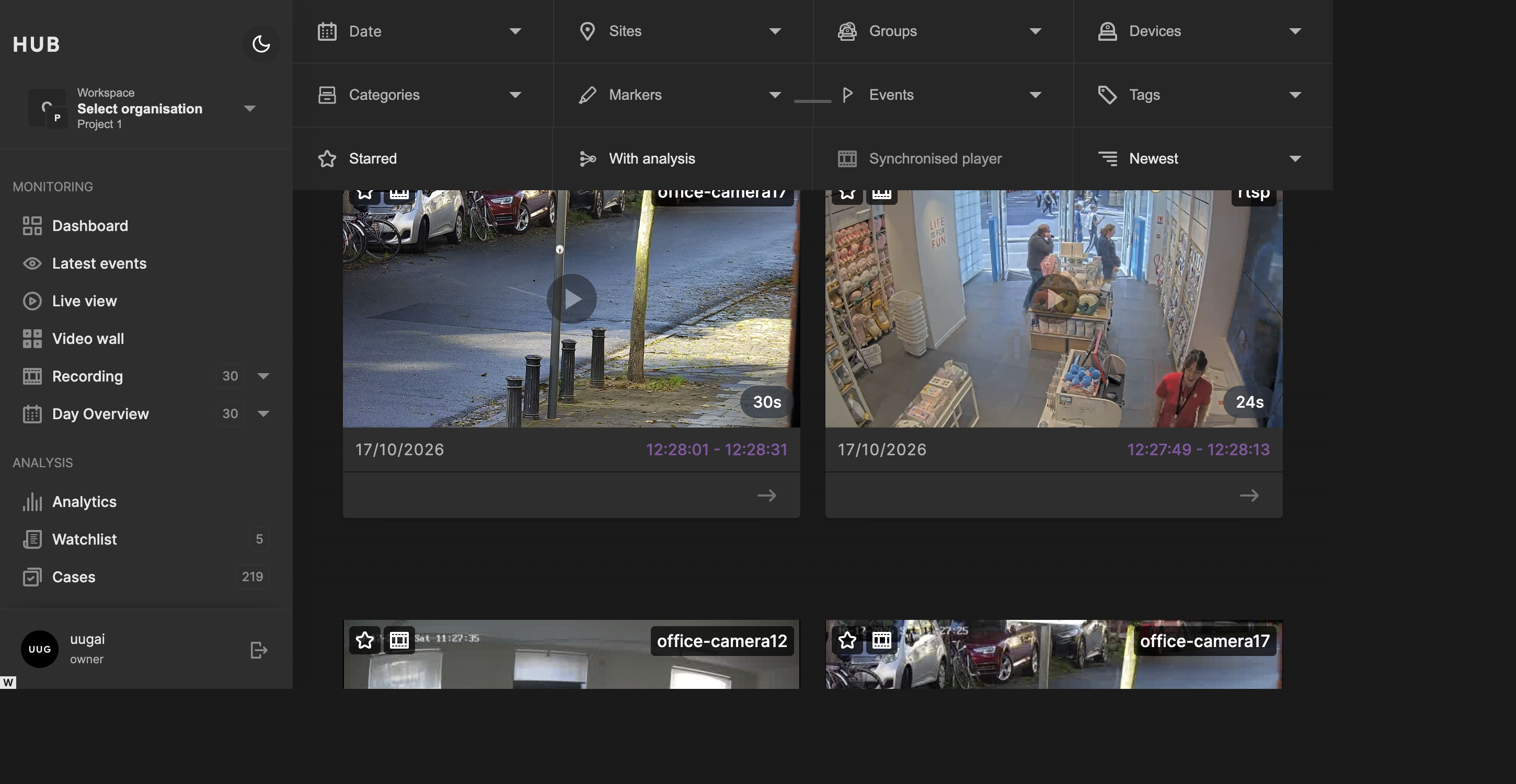
Play footage in the grid, use marker icons to find moments of interest, or open the recording details.
The grid loads additional recordings as you scroll. Each card can show the device, recording duration, start and end time, marker icons, and counting summaries.
- Play the preview to watch without leaving the overview.
- Hover over the scrub area to preview frames when a sprite sheet is available.
- Select a positioned marker icon to seek to the corresponding moment. Icons without a time position provide a summary rather than a seek target.
- Select the star to mark or unmark an important recording.
- Select the device pin to toggle that device in the recording filter.
- Select the date/time metadata area to open the side panel.
- Select view details to open the full recording page.
- Use the context control to review surrounding footage.
Playback controls include seeking, playback speed, volume, and fullscreen. Fullscreen can open the shared context player so that you can continue reviewing the recording with its surrounding footage.
Important
Starring a recording is a way to find it again, not an archive operation. Ordinary retention still applies. Create a case when footage must be kept beyond the normal recording window.
Inspecting a recording
Side panel and full detail page
Selecting a card’s metadata opens a panel on the right without losing your place in the results. Use Detail in the panel header to open the dedicated page when you need more space, or close the panel to continue browsing.
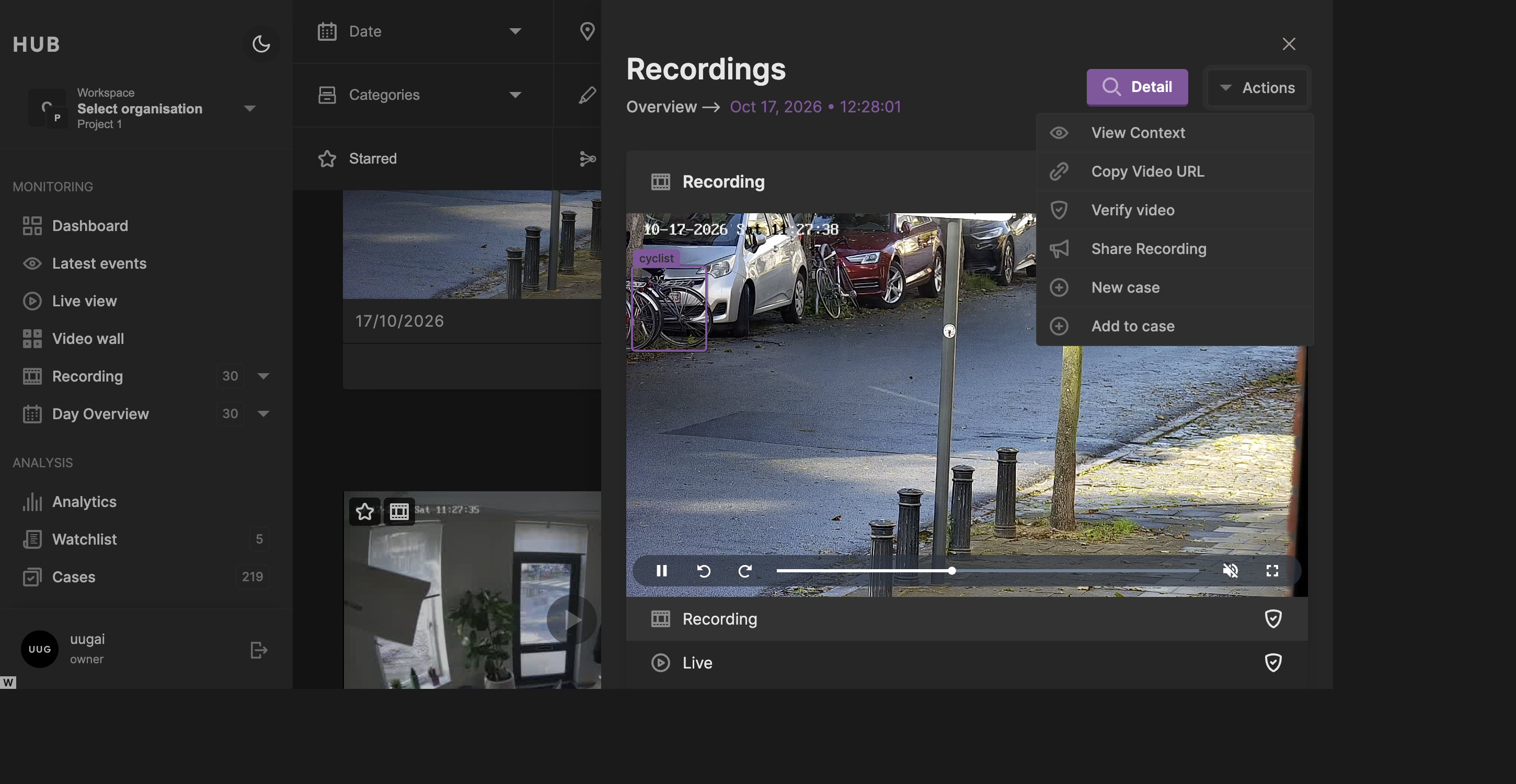
The side panel brings playback, analysis, and recording actions together without leaving the search results.
The panel and detail page bring together the available information:
- Recording plays the stored footage.
- Live shows the device’s current live view when available. It is not playback of the historical incident.
- Classifications, Counting, and Heatmap expose the corresponding analysis when it has been produced.
- Markers lists observations and their times, categories, events, and tags.
- The description provides context about the recorded activity.
- Device and location information identify where the footage originated.
- File information includes the storage solution and provider, filename, file size, codec, container, bitrate, resolution, and frame rate where known.
An unavailable analysis view does not necessarily indicate a playback problem: the recording may not have been processed by that analysis stage.
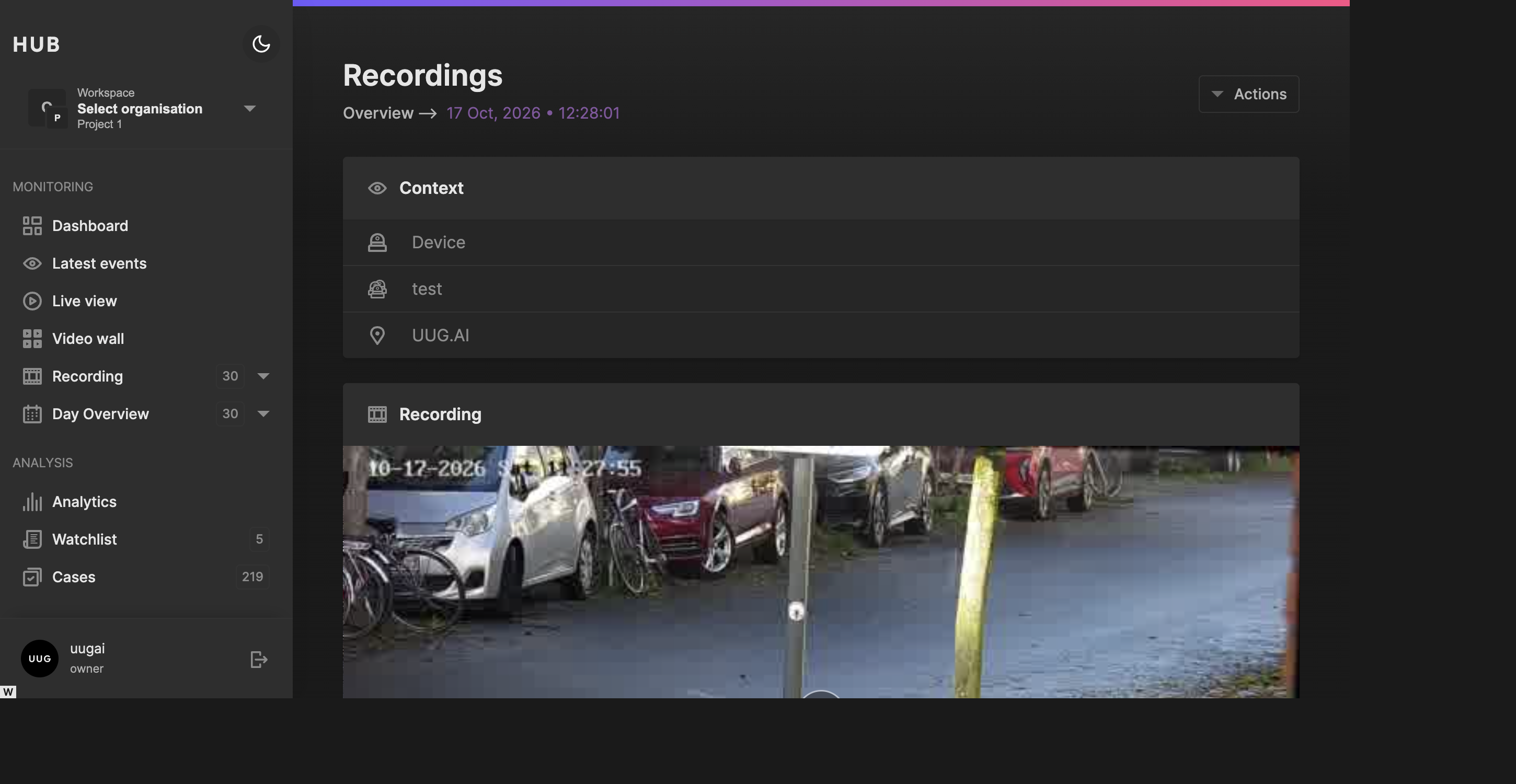
Open the detail page for a larger workspace and a direct link to the individual recording.
Markers and detection overlays
Select a marker with a time position to jump to its occurrence in the video. When the marker references detection tracks, use its overlay checkbox to show or hide the associated bounding boxes. The header checkbox controls the available overlays together.
Boxes follow the recording’s playback position. Summary-only results on older recordings may identify an object without providing the timed track data needed to draw an overlay.
Descriptions and vision-language analysis
Use Edit beside the recording description, update the text, and choose Save to persist your notes.
When vision-language analysis is available, Hub can also show an activity summary, observations, and camera-scene information. Treat generated descriptions as assistance for reviewing the footage, not as a substitute for checking the video itself.
Reviewing surrounding footage
Choose Actions → View Context in the side panel, or use the context control on a recording card, to open the shared context player.
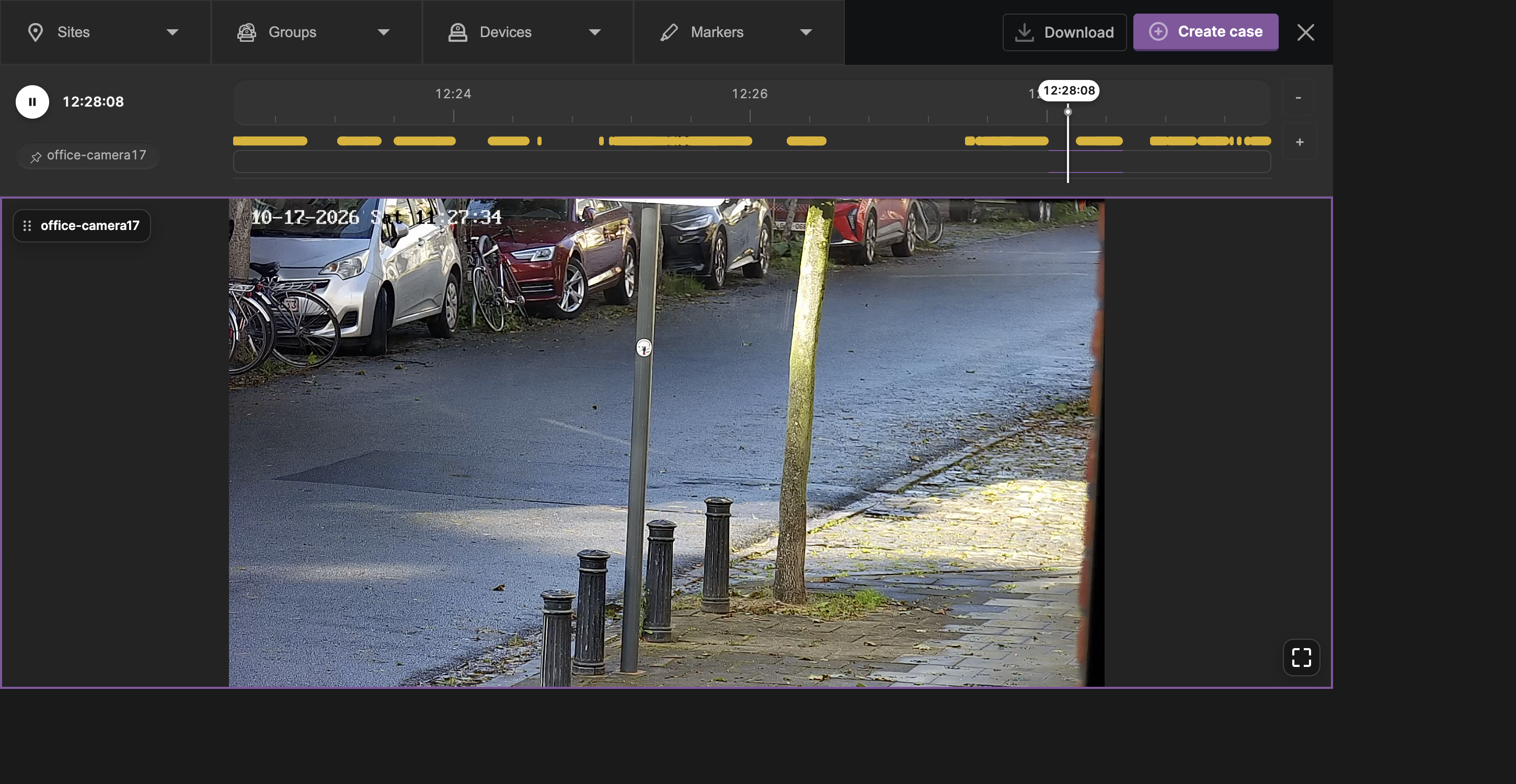
Review the lead-up and follow-up to an event across cameras using the context player.
Where offered, use the context time-window selector to include more or less footage around the selected recording. The site, group, device, and marker controls let you focus the context further. The shared timeline aligns the cameras by recording time; a gap indicates that no recording is available for that camera at that position.
For a search-driven comparison, select a single valid time window in the Recordings overview and enable Synchronised player. It opens the shared player for that interval. Narrow the devices and duration first to make a multi-camera investigation easier to follow.
The context player can also offer Download and Create case, depending on permissions and enabled features. Check the scope before using them: these actions concern the context selection, not just the original card.
Recording actions
The side panel and dedicated detail page expose an Actions menu:
| Action | What it does |
|---|---|
| View Context | Opens surrounding footage in the shared player. |
| Copy Video URL | Copies the resolved video URL when one is available. Treat this as a storage access link, not a permanent archive link. |
| Request recording | Requests footage from the source for an eligible metadata-only recording. |
| Verify video | Opens the verification page in a new tab with the video URL prefilled and verification requested. |
| Share Recording | Opens the sharing form for a title, notes, and recipient email addresses. |
| New case | Starts a new case containing this recording. |
| Add to case | Lets you find and select an existing case to attach the recording to. |
Requesting recordings from the source
If the recording initially contains metadata only, use Request recording when offered. Hub requests forwarding from the source Vault. Playback becomes available only after the video has been forwarded successfully.
To request several recordings, narrow the date, devices, and timeline, then choose Actions → Forward media in the overview header. Review the list, uncheck footage you do not need, and confirm forwarding. Recordings already available or missing source information are skipped. The progress view reports which recordings are available, requesting, queued, or need attention.
Forwarding depends on a reachable source and valid account routing configuration. It is not the same as downloading footage to your computer.
Sharing a recording
- Open the recording’s Actions → Share Recording.
- Enter the sharing title and notes.
- Add each recipient email address to the recipient list.
- Choose Share to submit the request.
Do not use the search URL as an external sharing link: it still requires Hub access. Sharing also does not replace case archiving or extend the ordinary recording retention period.
Creating or extending a case
For a single recording, choose New case or Add to case from its Actions menu. The latter opens a case picker with search and filters for sites, devices, assignees, labels, and status.
For an incident spanning multiple recordings:
- Set the date and relevant device or location filters.
- Select the incident window on the timeline.
- Choose Actions → Create case in the overview header.
- Review the recordings in the Media tab, removing anything unrelated.
- Complete the case details and assignees, then submit the case.
Bulk case creation uses the active search scope rather than only the cards currently visible. The maximum number of recordings per new case is deployment-configured; if the selection exceeds it, narrow the time window or device filters before trying again.
Creating a case queues the recordings for archiving to the configured Vault archive provider. Follow the export progress on the Cases page before assuming the evidence has been preserved. Case lifetime and archived-video retention are separate settings.
See Cases for the full creation form, assignment, privacy, archive configuration, and export behaviour.
Permissions and retention
Results are limited to the organisation, project, sites, and devices available to the signed-in user. Copying a search or detail URL does not bypass that scope. Additional permissions can apply to recording actions even when viewing the footage is allowed.
Ordinary recordings remain subject to the deployment’s retention policy. Neither a star nor an edited description protects a recording from cleanup. Use cases for important evidence and confirm that archiving succeeds.
See Cleanup for the retention service.
Configuration
Deployers can enable or hide filters and recording features, including sites, groups, devices, regions, marker fields, starred recordings, descriptions, the With analysis filter, and case creation. The default overview and fallback frame rate are also configurable.
See Feature flags for the current recording settings. Feature flags control the UI; they do not replace backend authorisation or configure analysis processing by themselves.
Troubleshooting
| Symptom | What to check |
|---|---|
| No recordings match the search | Clear marker, starred, region, and analysis filters; widen the time window; then confirm the date, devices, and active project. |
| A day is unavailable in the calendar | Confirm that footage was uploaded and the sequence stage indexed its recording date in the current scope. |
| The grid shows only part of the day | Scroll to load more results and check the active timeline selection and sort order. |
| A preview is missing but video plays | Thumbnail or sprite processing may still be pending. Check the corresponding processing workers. |
| A recording is listed but cannot play | Check whether it is metadata only and needs forwarding. Otherwise check storage availability, retention, and access to the resolved video URL. |
| A marker has no overlay or seek target | Older summary results may lack occurrence times or detection references. Playback does not require this richer analysis data. |
| Synchronised player is disabled | Select one valid time interval with an end after its start. |
| A filter or action is missing or disabled | Check the relevant feature configuration, role permissions, and whether the recording has the data the action needs. |
| Case creation rejects a large selection | Reduce the incident window or number of devices to fit the configured creation limit. |
| Forwarding does not complete | Check source Vault availability and routing configuration, then inspect recordings marked as needing attention. |